
How To Post Videos On YouTube
Published on
October 8, 2025
Estimated reading time:
7
minutes
Introduction: Why YouTube Still Matters
YouTube is the world’s second-largest search engine. Every month, over 2.5 billion users log in to search, watch, and discover. For brands and creators alike, knowing how to post videos on YouTube correctly is more than a technical step. It’s a foundational skill that can amplify your visibility, fuel your marketing funnel, and keep your content competitive.
But uploading isn’t only about dropping a file into YouTube Studio. It’s about planning, optimization, and strategy. Done well, your upload can earn long-term visibility and engagement. Done poorly, it might vanish into the noise. This guide walks you through everything: preparing your video, perfecting your titles and descriptions, and leveraging YouTube’s tools to grow.
Step 1: Prepare Your Video Before Uploading
A well-shot video with high quality audio, good resolution, and the right formatting is required. Poor videos perform poorly. Here is what you need to know before filming so get a video that looks and sounds as good as it can:
- Check your format and aspect ratio – MP4 is the most reliable format, and a 16:9 widescreen aspect ratio works best for most videos. Shorts, however, use a vertical 9:16 format.
- Resolution matters – While YouTube supports up to 8K, most creators stick with 1080p or 4K for quality and efficiency.
- Audio clarity – Poor sound drives viewers away faster than grainy visuals. Use AAC audio at 128 kbps or higher.
- Edit and trim – Keep your intros under 15 seconds. Hook viewers quickly before they bounce.
- File size and length – Standard accounts can upload up to 15 minutes. Verified accounts can upload much longer.
Taking care of these details ensures smoother processing once you hit “Upload.”
Step 2: Sign In to YouTube Studio
YouTube Studio is the dashboard for managing every aspect of your channel. To begin:
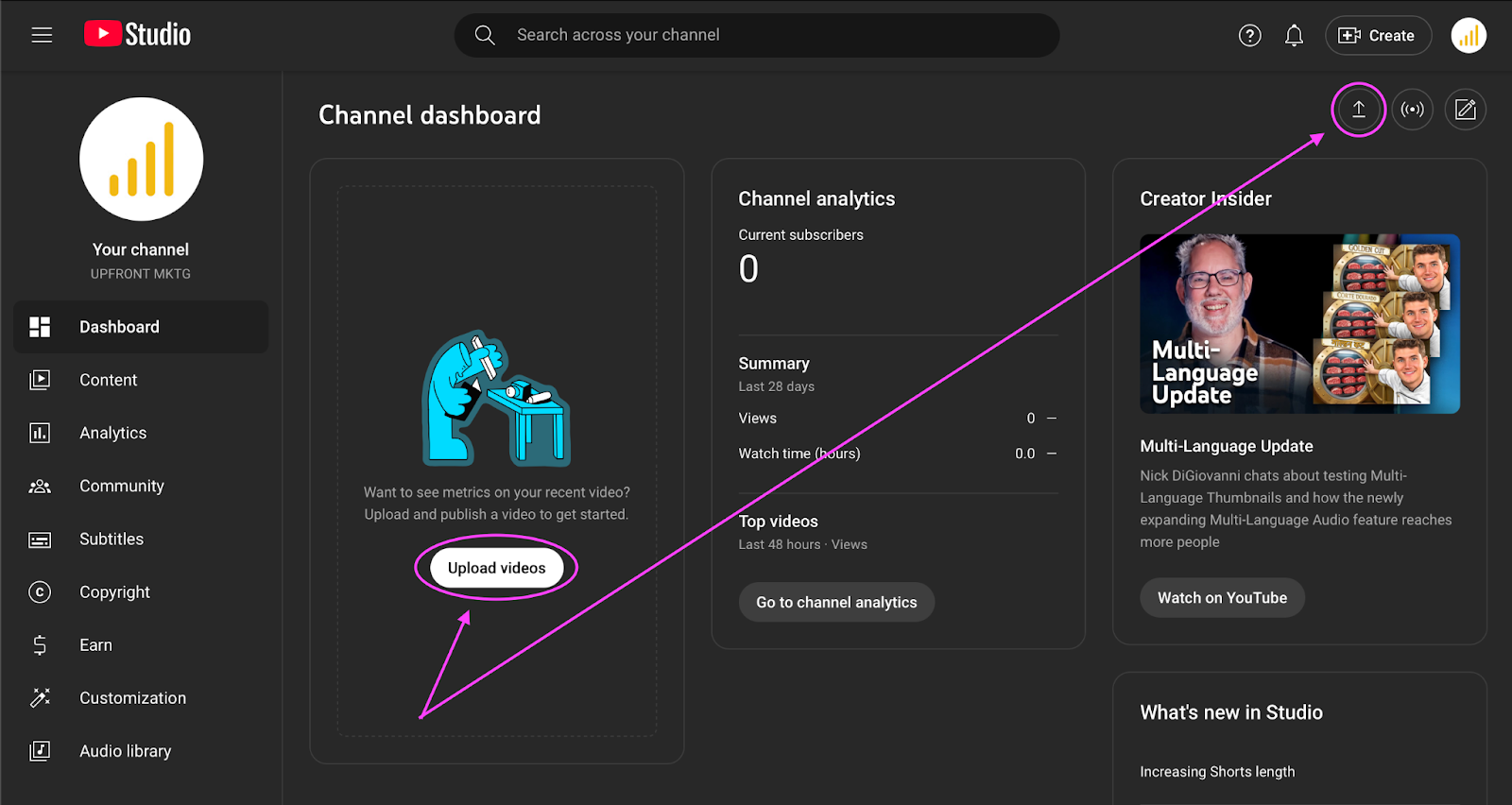
- Sign in to Youtube Studio and click the “Create” button in the upper right.

- Select “Upload videos” from the drop down, or from the body of the page:
- Drag and drop your file, or browse your computer to select the video(s) you want to upload:
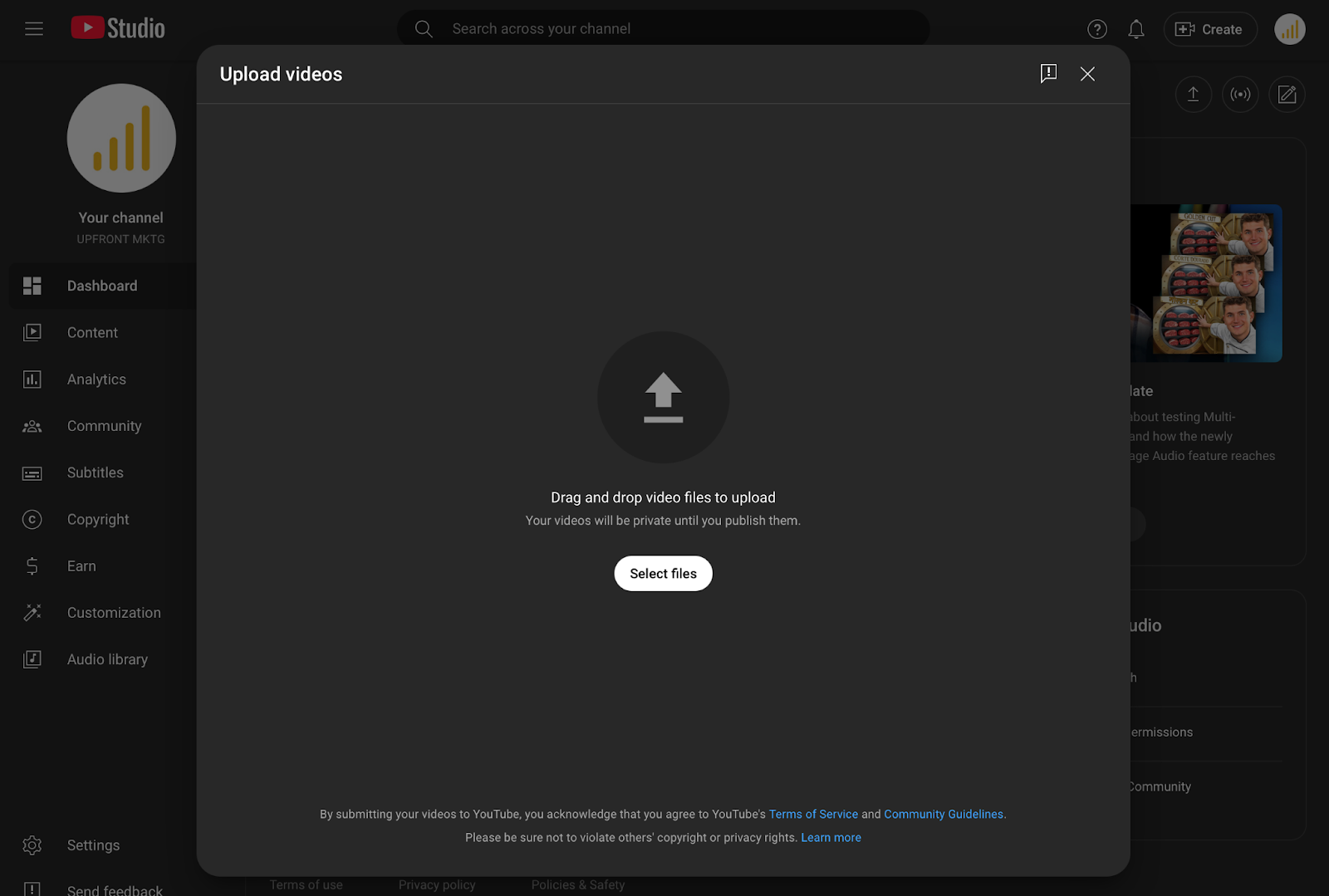
You can upload your videos in batches (up to 15 at a time), but edit each one individually. Every upload deserves optimized details.
Step 3: Optimize Your Video Title
Your video titles are one of the strongest ranking factors. YouTube gives you up to 100 characters, but the first 60 matter most in search results.
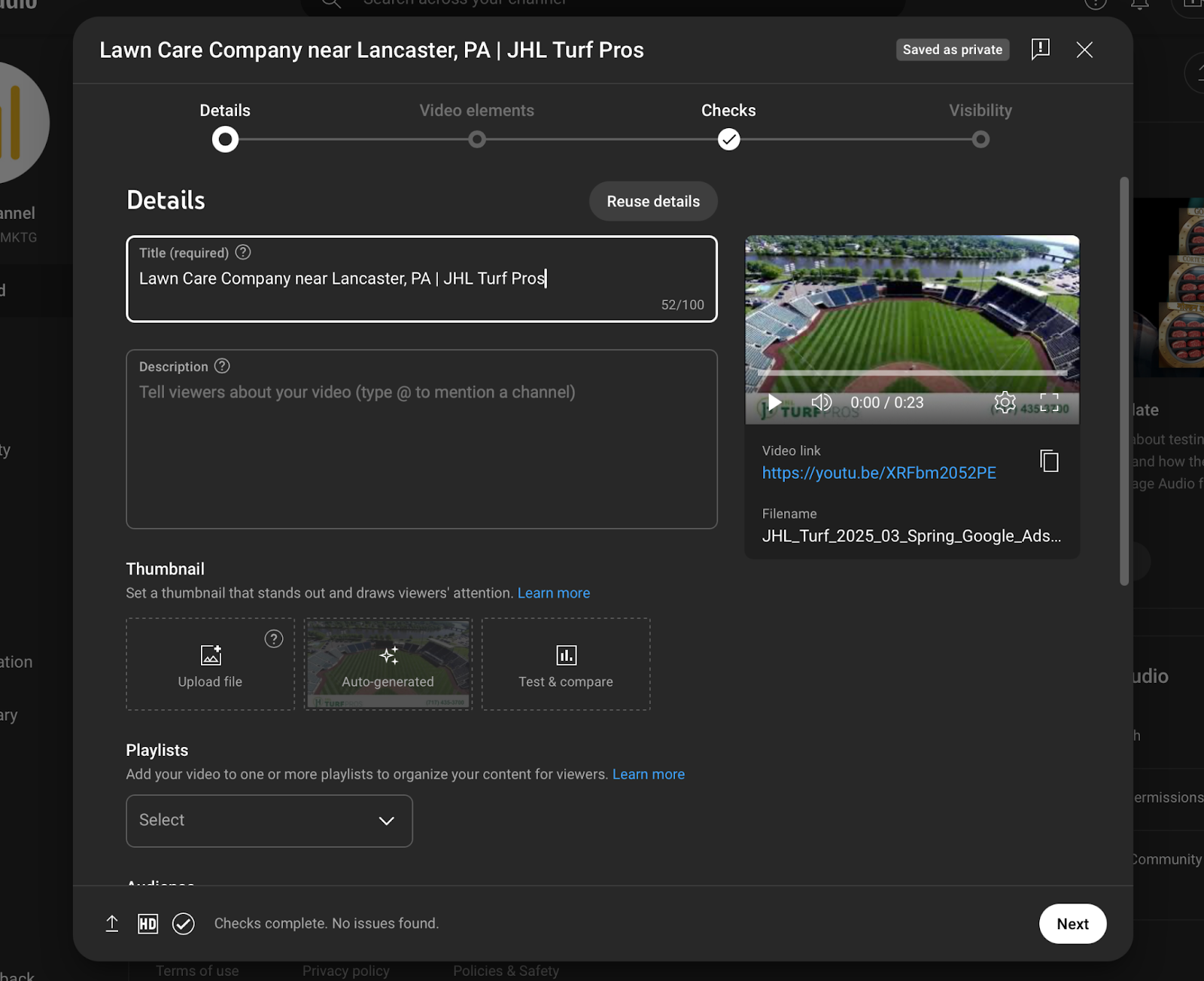
Tips for strong titles:
- Lead with the keyword (“lawn care company near Lancaster, PA” in my example)
- Keep it authentic. Avoid clickbait—it hurts trust.
- Prioritize clarity. Answer the exact question your audience is asking.
A great title is half SEO, half marketing hook.
Step 4: Write a Strong Video Description
Video descriptions are often overlooked but play a huge role in SEO. With up to 5,000 characters, you can provide context, value, and links (but you need to get verified to include the links).
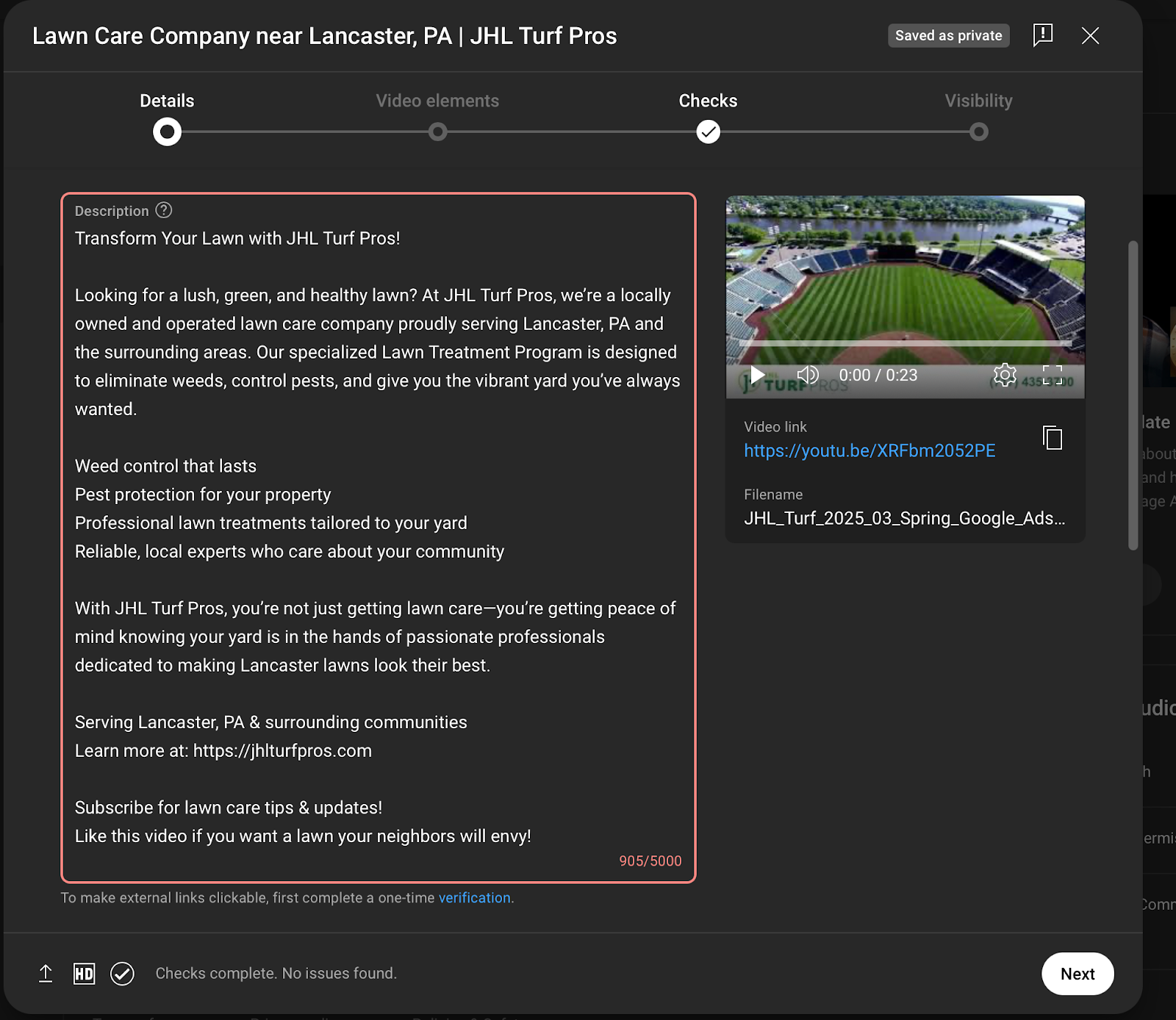
Note: The description box has a red outline while verification is pending. Once verified that will go away.
Best practices:
- Start with a 1–2 sentence summary, more if you naturally have more to say, but don’t force it.
- Add relevant keywords where they best fit, and keep the most important content to the beginning of the description.
- Include links to your website, playlists, and social media (Get verified so you can add these features)
- Use spacing, bullets, or timestamps for scannability.
- Add a transcript if possible—this helps YouTube understand your content.
Think of your description as a second chance to capture attention and signal relevance to search engines.
Step 5: Add Tags, Playlists, and Thumbnails
Tags aren’t as powerful as they once were, but they still add clarity. Use phrases like upload videos to YouTube or video tutorials rather than one-word tags.
- Playlists – Add your video to themed playlists. This increases total watch time and session length.
- Thumbnails – Custom thumbnails consistently outperform auto-generated ones. Use bold visuals, contrasting colors, and a consistent brand style.
Together, these elements increase clicks and improve retention.
Step 6: Set Visibility and Audience
When you upload your videos, you will need to confirm if they’re “Made for Kids.” This isn’t optional; it affects monetization and discoverability.
Visibility settings:
- Public – Visible to everyone immediately.
- Unlisted – Only viewable with the link.
- Private – Only you and selected users can watch.
- Scheduled – Scheduling automatically publishes your video at a set time. This helps maximize views if you know when your audience is most active.
Step 7: Explore Advanced Settings
Don’t skip the details in YouTube Studio:
- Chapters: Add timestamps to break content into digestible sections.
- End screens and cards: Promote other videos, encourage subscriptions, or link to your site.
- Captions and subtitles: Upload accurate captions. This improves accessibility and SEO.
- Copyright and ad checks: YouTube automatically runs these before publishing. Resolve issues early.
These extras separate amateur uploads from polished, professional content.
Step 8: Uploading From a Mobile Device
Sometimes speed matters. Uploading from a mobile device is quick and convenient:
- Open the YouTube app.
- Tap the camera icon.
- Record a new video or select one from your gallery.
- Add your title, video descriptions, and settings directly from your phone.
- Tap Upload to publish.
The app detects Shorts automatically if your video is vertical and under 60 seconds. Perfect for quick content.
Step 9: Optimize After Upload
Posting is just the start. Growth happens after. Here are some things to focus on post-upload to get the best outcome:
- Reply to comments within 24 hours to boost momentum.
- Embed videos on blogs, share in email newsletters, and cross-promote on social media.
- Use YouTube Studio to monitor click-through rate, average view duration, and retention. Adjust future videos based on performance.
- Update outdated descriptions, titles, or thumbnails. Even small tweaks can revive engagement.
Common Mistakes To Avoid
- Uploading with the wrong aspect ratio (black bars on vertical videos).
- Skipping video descriptions, leaving valuable search traffic on the table.
- Forgetting to upload your videos to playlists.
- Ignoring custom thumbnails.
- Posting at random times instead of scheduling strategically.
Avoiding these pitfalls helps every video work harder for you.
All that to say… Post with purpose
Learning how to post videos on YouTube is a core skill for creators and marketers alike. It’s not just about getting content online – it’s about building authority, expanding reach, and engaging your audience where they spend the most time.
From writing click-worthy video titles to optimized video descriptions and using YouTube Studio’s advanced settings, every step has an impact on whether your video gets noticed or not. When you upload your videos with strategy and purpose, you create content that lives longer, reaches further, and delivers more value.
Frequently Asked Questions About Posting Videos on YouTube
1. How long does it take to upload a video to YouTube?
Upload time depends on file size, resolution, and your internet connection. A short 1080p video on Wi-Fi may upload in minutes, while a 4K video on a slower network could take an hour or more. After upload, YouTube still processes your video in different resolutions so it plays smoothly across devices.
2. What is the best aspect ratio for YouTube videos?
The standard aspect ratio is 16:9, which works best for most screens. For YouTube Shorts, stick with a vertical 9:16 format. Avoid black bars—YouTube automatically adjusts your video to fit viewers’ screens.
3. How detailed should my video descriptions be?
YouTube allows up to 5,000 characters. You don’t need to use the full limit, but the more relevant information you include, the better. Use the first two lines to summarize your video clearly, then add links, timestamps, and any supporting details. Think of descriptions as both a search tool and a viewer guide.
4. Can I upload my videos directly from a mobile device?
Yes. The YouTube app makes it easy to upload videos from your smartphone or tablet. Simply tap the camera icon, select your video, and fill in the title, description, and settings. This is especially useful for creators who want to post quickly without returning to a desktop.
5. How do I make sure people actually find my video?
Optimization matters as much as the upload itself. Use strong video titles with clear keywords, write informative descriptions, add custom thumbnails, and place your video in a relevant playlist. Promoting your video on social media and blogs also helps attract early traffic, which can boost your visibility in YouTube search.

Author:
Lorianna Sprague
Lorianna is the Owner of UPFRONT MKTG and a contributing writer for Gorilla Creative. She specializes in crafting marketing strategies that connect brands with their audiences through authentic storytelling and creative execution. With a background in digital marketing and brand development, Lorianna is passionate about helping businesses grow by pairing data-driven insights with creative vision.


Gorilla Creative is a full service corporate video production company located in San Francisco, California.
hello@gorillacreative.com | (415) 907-4427 | 535 Mission St, Floor 14, Suite 1681, San Francisco, CA 94105
© 2026 Gorilla Creative. All rights reserved. Privacy Policy